
Canonical Exam Guide
About the Academy
Career-focused Qualifications Model
Our program combines the rigor of professional certification with the skills validation of a qualification program. Each professional track denotes that the successful candidate is qualified to perform the occupation to Canonical standards.
In contrast, some organizations may offer a “certificate”, which does not validate professional competency, but indicates the completion of something, such as a training exercise, an online course, or a workshop.
Our exams assess and verify professional competence by isolating tasks commonly associated with an occupational role, identifying the priority and criticality of each task to the role, and creating assessment exercises and items in proportion to these priorities.
This process is governed by stringent methodologies agreed upon by multiple training, talent development, customer education, and formal academic bodies. Successful performance on an exam verifies occupational competence, and as such, the creation and implementation of skills assessments are held to the highest standards of instructional design.
Preparing for a Complete Qualification
Each occupational track has different requirements, and exams can be taken at your own pace. The SysAdmin track requires receiving a passing score on all four exams: Using Linux Terminal, Using Ubuntu Desktop, Using Ubuntu Server, and Using DevOps Principles, with each exam lasting between 60-90 minutes depending on test taker’s proficiency and speed. (Those requiring additional accommodations should email their request to exams@canonical.com prior to the exam date.)
Each exam is a hybrid format featuring multiple choice, scenario-based, and performance-based questions. Candidates will engage with a virtual system and perform various administrative and operational tasks, as well as answer questions about specific system configurations or general Linux knowledge. Instructions for hands-on activities will be found to the right of the exam environment. (see the “In-exam Environment” section for more details.)
Exams may be taken individually or combined in any order to form the overall qualification, according to the needs of the test taker.
For the SysAdmin qualification, successful completion of all four exams indicates a well-rounded knowledge of Linux Terminal, Ubuntu Desktop, and Ubuntu Server. Canonical SysAdmins are able to troubleshoot, configure, install, and maintain systems, processes, and general activities associated with using Linux, Ubuntu Desktop, and Ubuntu Server as a system administrator or IT professional. Subject matter depth is validated by several practical hands-on challenges and subject matter breadth is evaluated by a number of multiple-choice questions.
Exams are based on the year of the LTS running on test nodes. The 2024 exams are all based on 24.04 (Noble Numbat), and will not change again until the 2026 exams are available for the 26.04 LTS cycle.
Exam contents overview and domain weight
Using Linux Terminal, 75 minutes
Navigating Files and Filesystems 34%
Managing System Resources 33%
Securing Filesystem Access 33%
Using Ubuntu Desktop, 90 minutes
Configuring Networking Capabilities 25%
Engaging with the Open Source Community 10%
Installing Ubuntu Desktop 10%
Managing Applications 28%
Securing Desktop Systems 22%
Using Ubuntu Server, 90 minutes
Configuring Servers and Services 23%
Deploying Ubuntu Server 27%
Securing Server Access 24%
Managing Processes 26%
Using DevOps Principles, (duration estimated 90-120 mins)
Using Tools for Automation and System Updating 32%
Understanding Deployment Technologies 34%
Monitoring & Troubleshooting Systems
General scoring information
Each item’s score is weighted based on the steps, complexity, and importance to the occupational role as determined by a panel of industry experts. Items are also reviewed continuously for item quality using industry-standard assessment metrics. Each overall exam score is based on subject matter experts’ (SMEs’) assessment via a standard “cut score” methodology. The 2024 edition of Using Linux Terminal has a passing score of 70. These scores may change with exam updates due to the nature of this calculation.
Exams that do not receive a passing score are released immediately. Exams that receive a passing score are reviewed for abnormalities and honor code compliance before badges are issued. If you have not received a score in 48 hours, contact the Canonical Exams team at exams@canonical.com. Please note that beta exams do not release scores or badges until the completion of the beta testing period.
Exam Content Development
All exam content is based on industry standard best practices for technical certification. Exam scope is determined by extensive industry analysis, including reviews of job listings, college curriculum, technical expertise, and screened by a survey of industry professionals to determine the occupational relevance of exam domains and exercises. Items are written and reviewed with feedback from subject matter experts and are continuously monitored for item quality and performance metrics.
Exam badging process
Each exam badge can be combined and applied toward a qualification or track for two years, but each badge is marked with the corresponding year of the exam Ubuntu release. This allows prospective employers to know exactly how recent your experience is without the implication that those skills expire. (2024 candidates should contact us at exams@canonical.com if they are interested in pursuing a 2026 qualification.)
Qualifications Certificate
Upon completion of all four exams, candidates will be eligible for the SysAdmin qualification badge and a printable certificate, provided by Credly.
Purchase & Schedule the exam
How to buy for yourself
Exams may be purchased in the Academy shop.
How to buy for your organization
This option is not currently available. Organizational purchasing will be available in future Academy updates. Please contact exams@canonical.com to discuss further options.
Scheduling policies
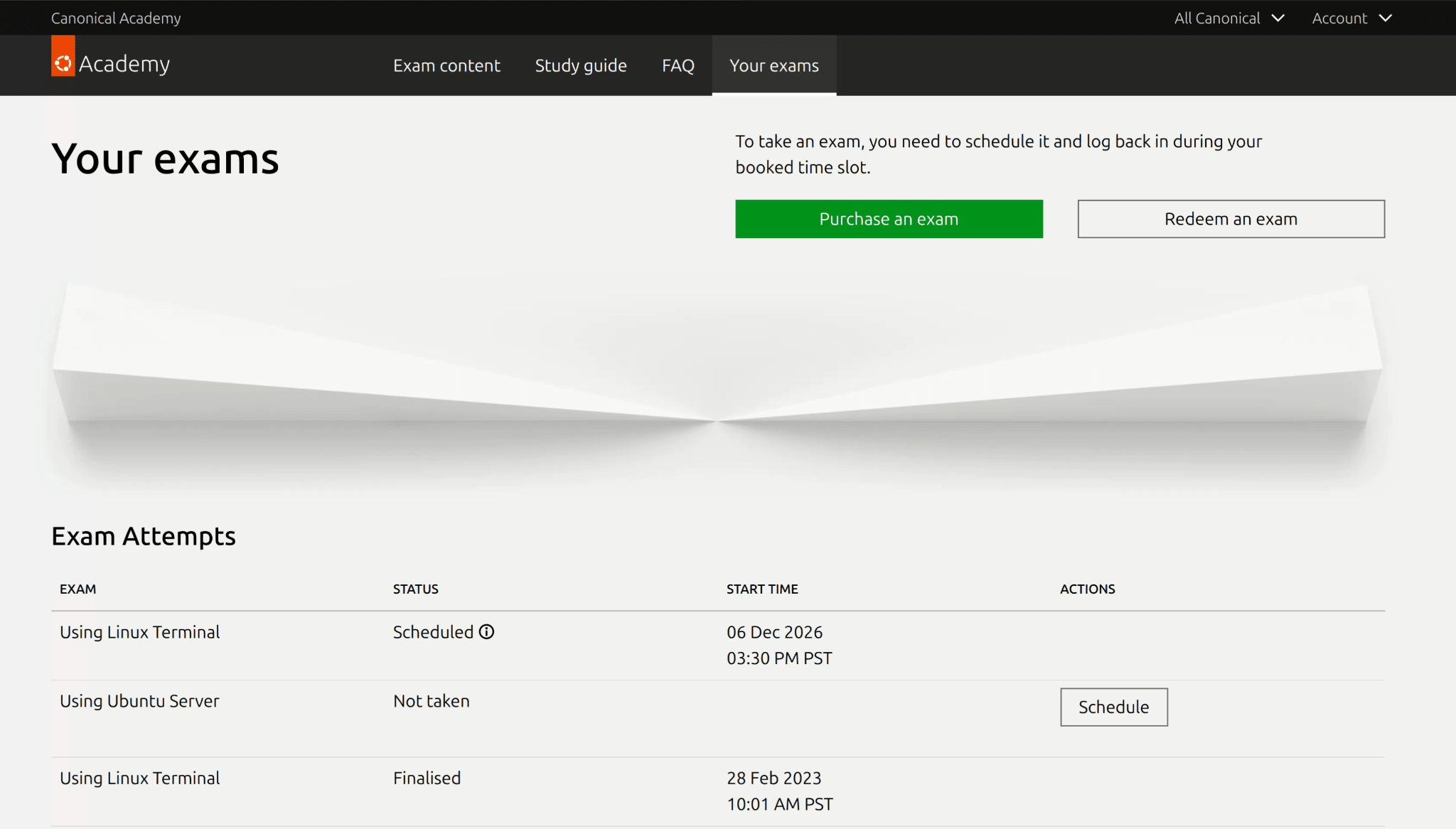
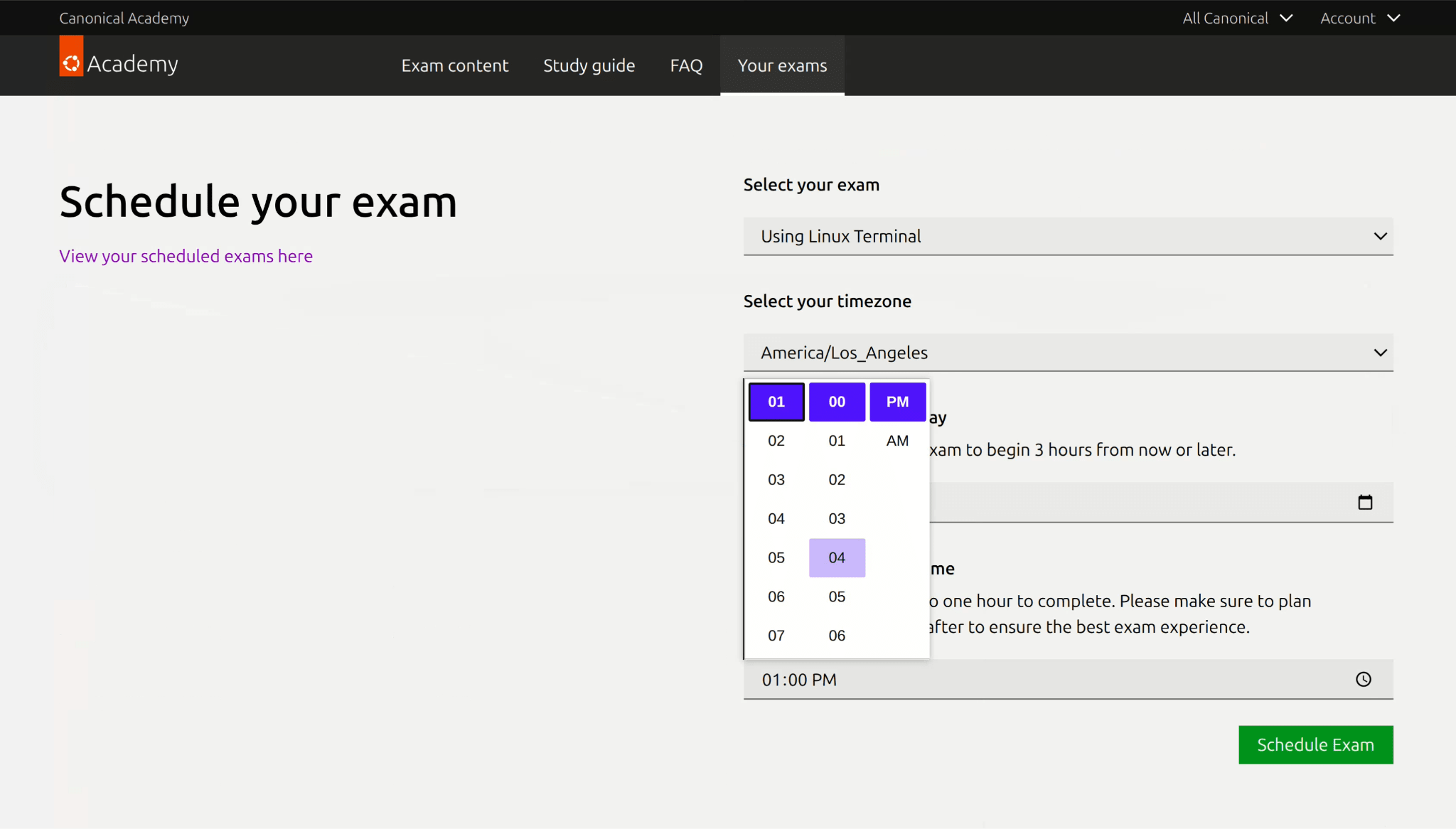
Exam bookings require a minimum of three hours notice. Exams may be rescheduled through academy.canonical.com up to 24 hrs prior to the exam time. Exams may not be cancelled.
Unless otherwise specified, complimentary preview releases and beta releases of early exams and promotional exam giveaways are only available for 30 days.
Once purchased, general release exams can be scheduled up to one year in the future.
Exams may be scheduled through academy.canonical.com by using the appropriate dropdown options
Retake policies
Exams may be retaken once per calendar year for a total of two times every 365 days. Free promotional and beta exams may be more restrictive and limited to 30 days or less.
There are multiple versions of all exam items, and retake exams are unlikely to have the same questions.
Refund policies
Exams are not refundable. In limited circumstances, such as technical difficulties, candidates may request a retake opportunity.
Prepare for the exam
Expectations and Requirements
Expected knowledge and experience
Exams are prepared after an extensive analysis of occupational competencies. Candidates should thoroughly review the Study Guide section of the Exam Guide.
System Requirements
Exam proctoring will require the use of your web camera and microphone, and will also require you screenshare your entire screen during the exam. No more than one display is allowed for the duration of the exam. Before entering the exam environment you will receive an email from our partner, Proctor 360, in order to complete your systems verification check. We STRONGLY advise doing this as soon as possible prior to your exam time to prevent delays in entering the exam.
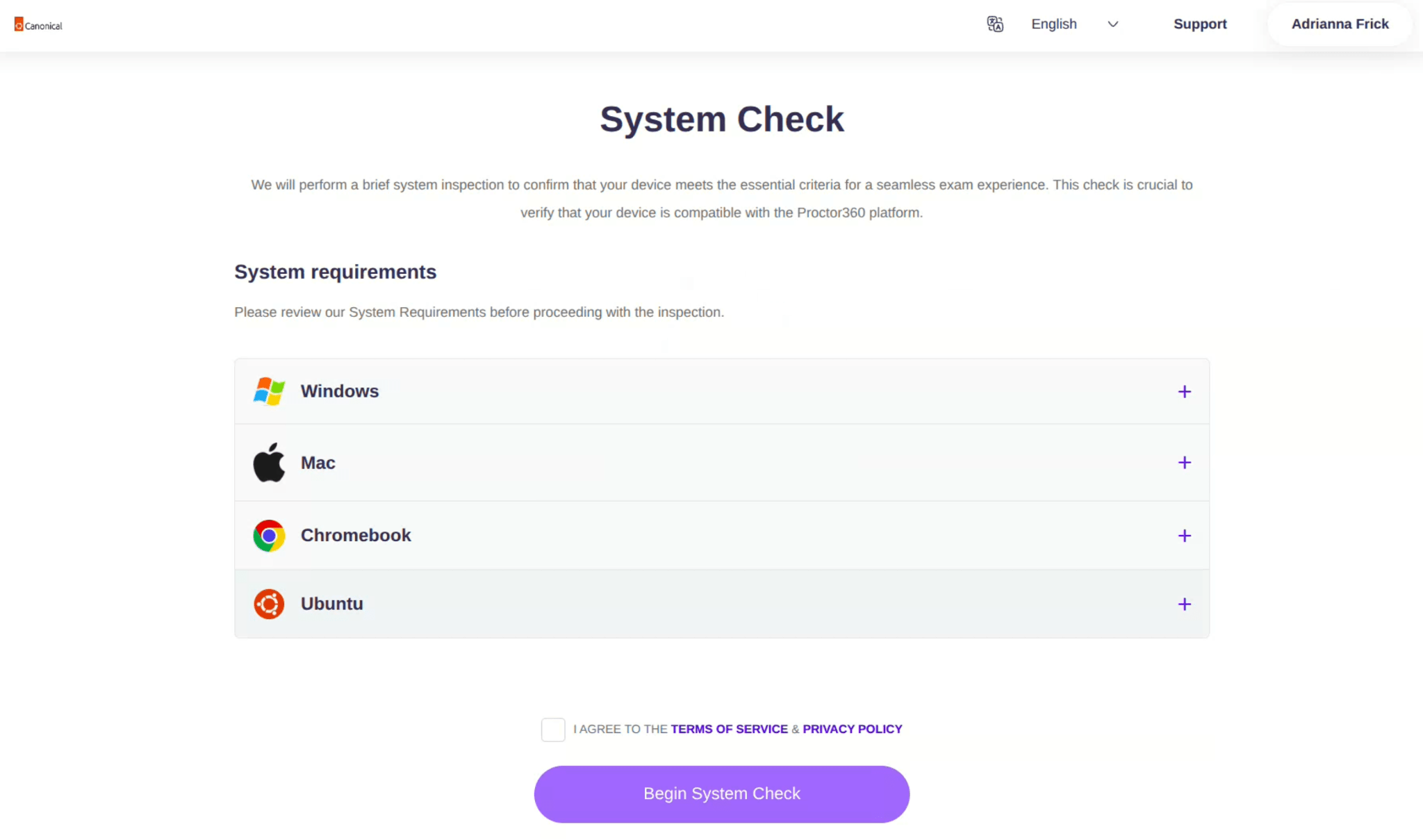
You will be required to verify use of your microphone, webcam, speakers, and screensharing each time you exit and enter the exam.
Candidates are advised to use a Chromium-based browser. Firefox is NOT supported at this time, although we intend to support it at a future time. The exam is conducted via web browser, and any operating system capable of running a modern browser is acceptable, although we recommend a large display size. Please note that due to the nature of a browser-based environment, some shortcuts may not be available. Of particular note is Ctrl-W, commonly used in the terminal but also used to close your tab.
Linux:
Operating System: Ubuntu 22.04 and above
Browser: Chromium-based
Memory:
4GB (minimum)
Recommended Internet Connection: 10 Mbit/s upload, 10
Mbit/s download
Web Camera: 640×640 resolution (minimum)
Microphone
Speaker
Windows:
Operating System: Windows 10 & Above*
Browser: Chrome or
Edge*
Memory: 4GB (minimum)
Recommended Internet Connection:
10 Mbit/s upload, 10 Mbit/s download
Web Camera: 640×640 resolution
(minimum)
Microphone
Speaker
*In some configurations,
Windows 11 and Edge may fail to properly allow access to system
resources such as the camera and microphone. Users are advised to review
their security settings
Mac:
Operating System: Mojave & Above
Browser: Chrome or Edge
Memory:
4GB (minimum)
Recommended Internet Connection: 10 Mbit/s upload, 10
Mbit/s download
Web Camera: 640×640 resolution (minimum)
Microphone
Speaker
Chromebook:
Operating System: ChromeOS 112.0.5615.134 & Above
Browser:
Chrome or Edge
Memory: 4GB (minimum)
Recommended Internet
Connection: 10 Mbit/s upload, 10 Mbit/s download
Web Camera:
640×640 resolution (minimum)
Microphone
Speaker
Environment Requirements
The test taker should be alone in the room and any disruptions should be avoided. No other person is allowed to enter the room while you are taking the proctored exam. You will be required to record an environment check, and your environment will be continuously monitored for abnormalities.
The lighting in the room must be bright enough to be considered “daylight” quality. Overhead lighting is preferred. If overhead lighting is not available, the source of light must not be behind you.
You must sit at a clean desk or table. The walls surrounding the test taker should be clear of distracting materials.
The desk or walls around you must not have any writing.
The room must be as quiet as possible. Sounds such as music or television are not permitted.
The following items MUST NOT be on your desk or used during your proctored exam, unless posted rules for the exam specifically permit these materials:
- Books
- Paper
- Pens
- Calculators
- Textbooks
- Notebooks
- Phones
Test Taker Computer
The computer you are using to take the exam must not have more than one display or monitor. For example, if you usually use a laptop with a monitor connected, disconnect your monitor and use only the laptop screen.
You must close all other programs or windows on your testing computer before you begin the exam.
You must not use the following tools:
- Programs such as Excel, Word, or PowerPoint
- Communication programs such as Skype or Zoom
- Any website page other than the exam window in your course. There may be restrictions on browsers and allowed resources inside the exam environment window, which will be mentioned in the exam instructions for the specified exam.
Test Taker Behavior
- You must verify your identity using a photo ID that has your name and photo on the same side.
- You must not use headphones, ear buds, or any other type of listening equipment, unless directed otherwise.
- You must not communicate with any other person by any means.
- You must not use a phone for any reason.
- You must not leave the room during the exam for any reason, unless posted rules for the exam specifically permit you to do so.
Additional time or special allowances
If you have a disability and need additional time or specific accommodations to take the exam, contact exams@canonical.com with your request before scheduling your exam. The Academy team must approve your request and make any adjustments before you start your exam.
Consequences of Rule Violations
Exams will be automatically screened for abnormalities and reviewed by course staff before any passing scores or badges are issued.
If your exam demonstrates a violation of the rules, you will receive a failing grade, will not receive a badge, and may be banned from retakes of the same exam or the entire Academy, depending on the nature of the violation and at the discretion of the Academy team. If you experience an unintentional violation, email exams@canonical.com to notify exam screeners PRIOR to the exam review phase.
Attestations and Agreements
Candidates are expected to attest that they have read and agree to the following policies in order to maintain the integrity and credibility of our program and their accomplishment:
Confidentiality Agreement
Candidates are expected to adhere to our confidentiality policies and are prohibited from sharing exam information with others. Access to the exam requires agreeing to our standard confidentiality agreement. Our most recent version of our confidentiality agreement is available here.
Terms of Service
Our most recent version of our Terms of Service are available for review on our website here: https://canonical.com/legal/terms-and-policies/academy-terms.
Code of Conduct
By continuing to the exam, I pledge that I will:
- Complete all tests and assignments on my own.
- Maintain only one user account, unless Canonical has approved the use of a separate user account in connection with an employer-sponsored or university-sponsored program.
- Not let anyone else use my username and/or password.
- Not engage in any activity that would dishonestly improve my results, or improve or hurt the results of others.
- Not share exam content, or reveal answers to problems that are being used to assess performance.
Violations
If you are found in violation of the Terms of Service, the Confidentiality Agreement, or this Code of Conduct, you may be subject to one or more of the following actions:
- Receiving no credit for an exam.
- Having any credential earned from Canonical withheld or revoked.
- Being unenrolled from all Canonical exams.
- Termination of your use of all Canonical Academy products.
Additional actions may be taken at the sole discretion of Canonical.
No refunds will be issued in the case of any corrective action for such violations.
Code of Conduct violations will be determined at the sole discretion of Canonical. You will be notified if a determination has been made that you have violated this Code of Conduct, and will be informed of the corresponding action to be taken as a result of the violation.
Privacy Policies
Due to the complex nature of our exam environment and the sensitive nature of data required to validate identity, our data and privacy policies are extensive. In addition to reviewing and agreeing to the Privacy Policy for Academy, candidates should review Proctor360’s Privacy statement in detail: https://proctor360.com/privacy-explained
P360-hosted Canonical Rules & Regulations for Proctoring (not something to attest to, but still relevant)
Entering the Exam
Proctoring
Canonical has partnered with Proctor360 and exams are , in part, secured via their innovative AI prescreening technology. Your exam session, from browser to screen to room environment, is recorded and screened for abnormalities. These sessions are reviewed by AI as well as human proctors before badges are released.
Candidates found to violate any rules listed in the exam code of conduct, terms and conditions, or proctoring rules will not be allowed retakes and may be banned from Canonical exams for a short time or permanently, at the discretion of Canonical staff. If you believe your exam was flagged in error, reach out to the Canonical Exams team at exams@canonical.com for an additional screening.
Proctoring and Check-in Support
Any support for proctoring issues, including failure to pass a system check, can be reported to Proctor 360 by filling out this form. If you are having difficulty passing the system check, try a different browser, and ensure that you don’t have any firewalls, VPNs, or proxies running for the duration of the exam.
It is the test taker’s responsibility to complete systems check-in prior to their exam. Tests marked as no show or failure due to a candidate failing a system check-in are not eligible for a retake.
Downloads
For the duration of your exam, you will need the Proctor 360 browser extension installed. Download it before your exam time from the Chrome store. (At this time only Chromium-based browsers are supported.)
The Proctor360 Chrome Extension enables secure remote proctoring by providing features that ensure the integrity of online exams. Its primary purpose is to facilitate secure password entry and monitor the exam environment through browser lockdown and activity tracking, ensuring a fair test-taking experience.
Test takers are encouraged to remove the extension upon conclusion of their exam.
Permissions
Exam securing or proctoring features may ask for permissions to your web camera, desktop screen, or microphone. You may also be asked to record your environment to verify a clear workspace, as well as pass a photo ID verification. Review Proctor360’s Privacy Policy for more information.
Photo ID and Recording
In order to validate that the person taking the exam is the person earning the credit, we must adhere to strict proctoring standards. Exams that refuse to allow recording or that do not provide ID verification will be subject to one of the following, at the discretion of Canonical Academy staff:
- Exam access prevented
- Exam results nullified and no badge issued
- Academy access banned
Note that ID validation checks for name, photo ID, and the validity of the type of identification used, such as appropriate seals and logos, and these elements should not be covered during check-in. Any additional information, such as address, is not reviewed, and the covering of this type of sensitive information will not be counted against the candidate.
In-Exam Environment
Exam Content: Operating systems
Once the environment is loaded, it will appear to be a default installation of Ubuntu 24.04 LTS (Noble Numbat) with a GNOME Desktop, Terminal, and other relevant tools. All other nodes in the exam environment are running Ubuntu Server 22.04 LTS. Exam nodes run LTS versions of Ubuntu unless a performance based exercise requires otherwise. The particular LTS is indicated by the year of the exam. 2024 editions are available in 2025 because nodes in the exam environment are using 24.04 (Noble Numbat). The upcoming 2026 releases will be based on the 26.04 LTS and will be available once the LTS is released, stable, and the environment has been tested for updates.
Exam environment overview
Each exam provides an in-browser remote desktop interface into a functional Ubuntu Desktop environment running GNOME. From this initial node, you will be expected to troubleshoot, configure, install, and maintain systems, processes, and other general activities associated with managing Linux. The exam is a hybrid format featuring multiple choice, scenario-based, and performance-based questions. Exam instructions, timer, and exam questions will be provided in a browser inside the primary exam host node.
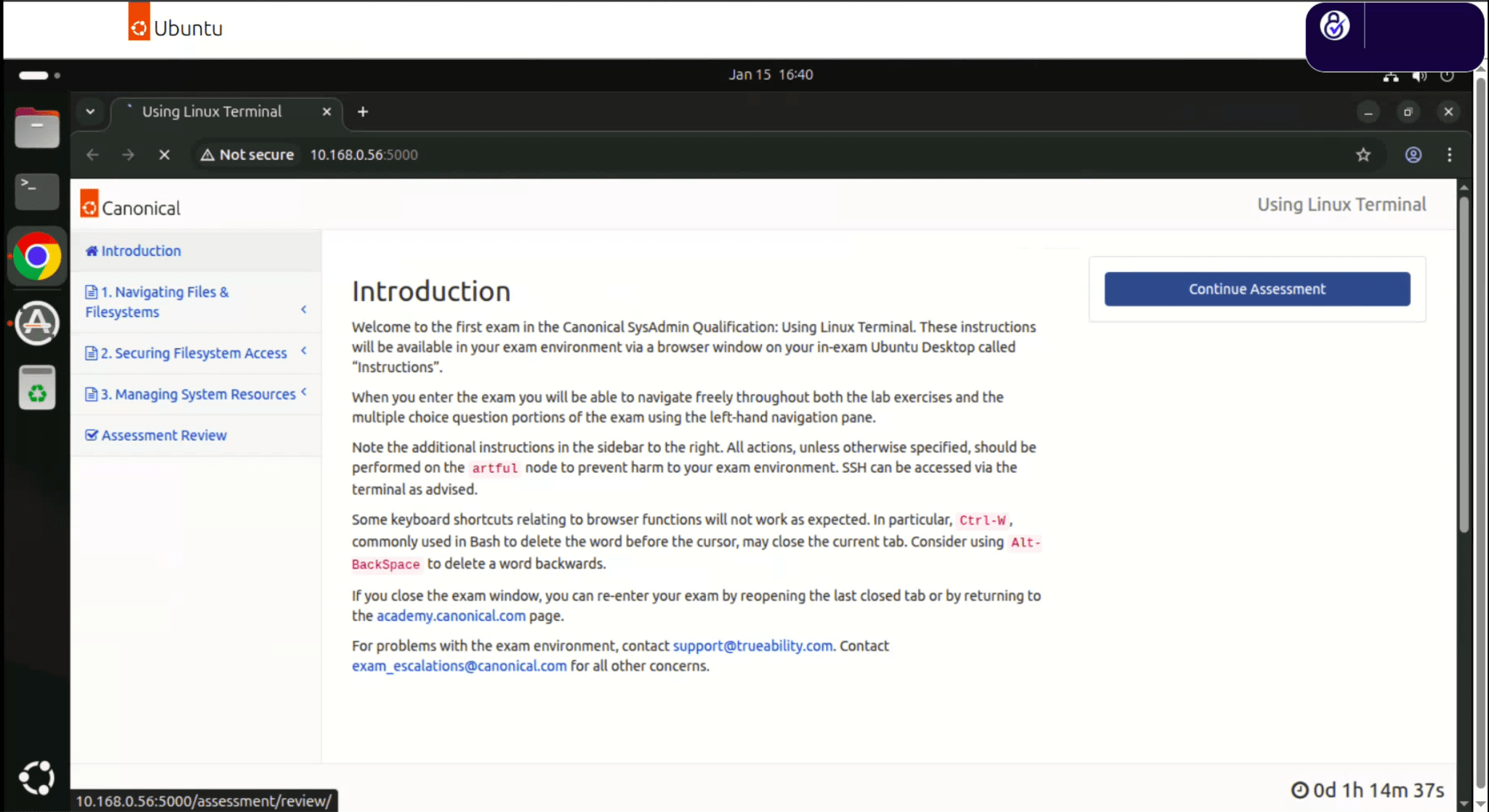
When the proctor check-in launches into the exam, you will be given an introduction message before you hit “Start”. Once you hit “Start”, your exam environment will load, and your timer will start. Depending on your screen size, you may need to scroll to see the timer in the lower right hand corner.
The exam environment is a browser-based Ubuntu Desktop, and exam instructions will load in a browser window upon entry. You can minimize and move this window around as needed. Any applications you require are loaded onto the node. Select “Continue Assessment” to begin reviewing exam items.
If you have difficulties managing screen space due to a small screen size, Activities and Workspaces are supported in the GNOME environment:

Individuals are discouraged from using reference materials from outside of the exam environment. All exam tasks, including connecting to other nodes, will occur within the browser-based exam environment and will not require any resources from the user’s host system. In-exam browsers allow access to documentation and Ubuntu manpages. Exam environments use Minimal Ubuntu images and have man pages pre-loaded on the initial node. You may use man pages and official Ubuntu documentation from within the exam environment. You may not open additional tabs or windows on your client-side computer.
While some events may be nonfatal, please note that the environment is as realistic as possible. It is your responsibility to not put the system in an unrecoverable state.
Features & Completion
The exam environment allows you to move freely through items, change answers, and flag items for later review.
The exam environment instructions have three main areas. To the left of the screen you’ll notice exam item navigation. This will highlight what item you are on, and allow you to move freely through the exam. Candidates are encouraged to respond to items in the order they prefer and review them as needed.
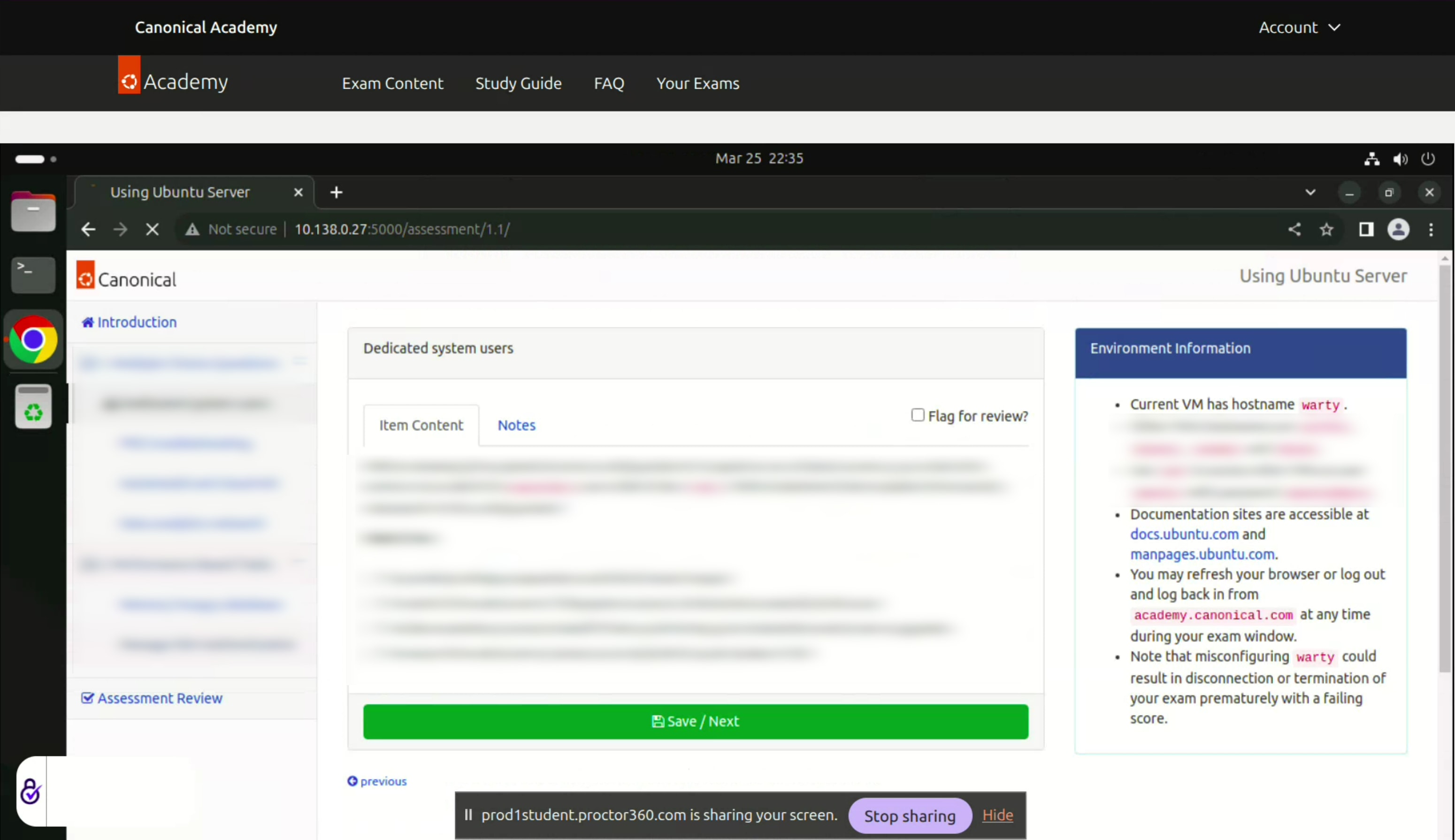
The central panel includes each exam item with complete directions and any node information or command details needed. Next to the content tab there is a Notes tab provided for convenience. In addition, candidates may choose to use the “Flag for review?” checkbox to screen on the assessment completion page.
The right panel includes key environment and exam information that will be used throughout the exam. The bottom right features a timer.
There is a final assessment review page allowing candidates to check that all items have been viewed, and identify any items left for additional review.
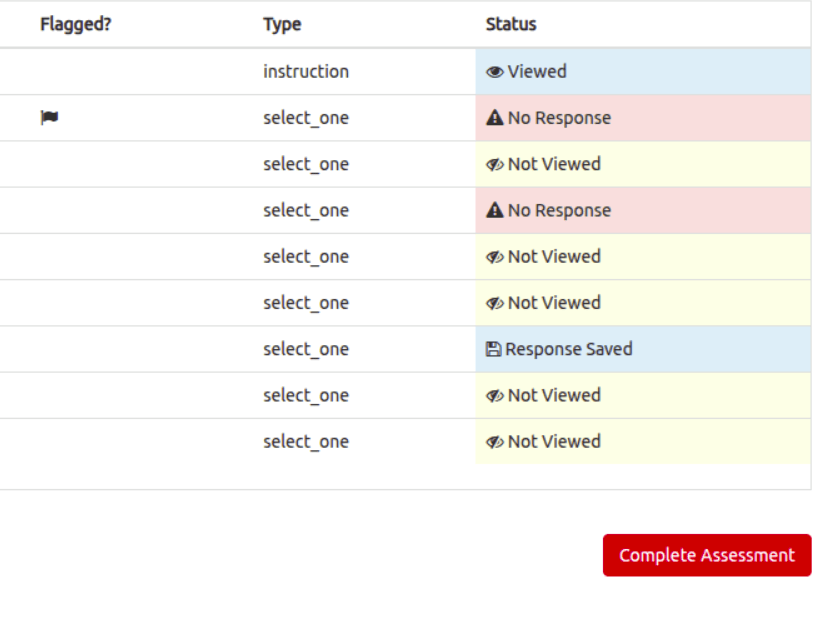
After reviewing their assessment, candidates can click on “Complete Assessment”. After submitting the assessment for scoring, candidates can close their proctoring session and terminate their screen-sharing.
Technical tips
Should you unintentionally close your environment, please return to academy.canonical.com to access it again or relaunch from the proctoring email. The exam timer will continue to run even if you are disconnected.
Please note that due to the nature of a browser-based environment, some shortcuts may not be available. Of particular note is Ctrl-W, commonly used in text editors but also used to close your tab.
Black screen & clipboard
Exam environments are provided to the browser via Glyptodon using Guacamole. As exams load there will be a moment where the screen is black and the clipboard instructions are shown.
If the black screen lasts longer than 20 seconds, please contact us at exams@canonical.com.
The Guacamole clipboard options are available at any time by pressing Ctrl-Alt-Shift at the same time.
Common Technical Issues
Your Exams page does not reflect purchase immediately
On occasion you may find that your exam is not immediately reflected. This is of concern with beta exams which may not have traditional purchasing messages. Please wait a few minutes and reload the page before contacting support.
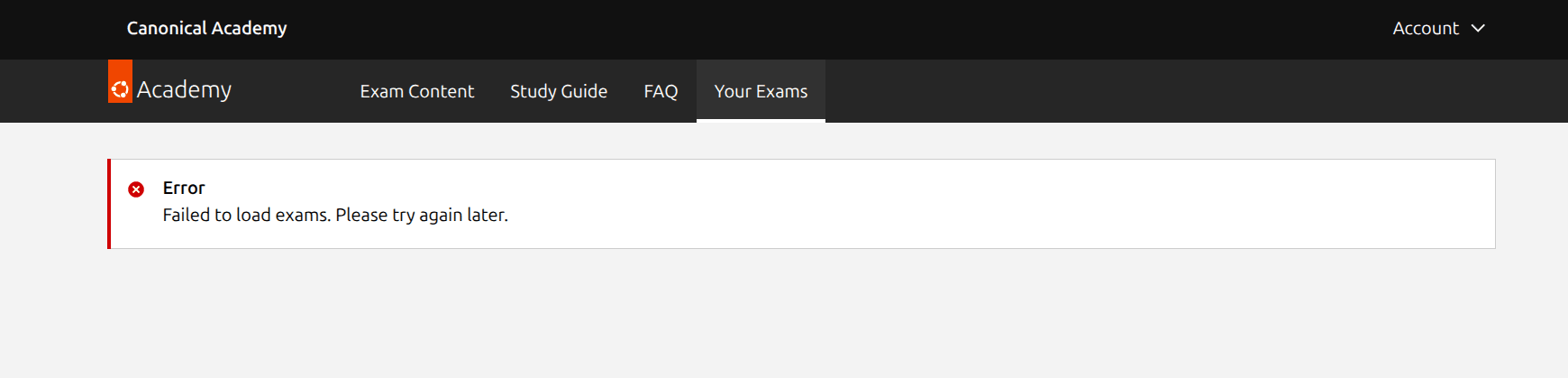
Your Exams shows "Failed to load exams" after reloading page
This is a known login caching issue and a fix is in progress. If reloading the page does not correct the issue, log out and login to Ubuntu One again.
Keyboard stops working in exam after clicking outside of environment
This is an issue with a fix in progress. On occasion, examinees may click outside of the exam environment, causing your keyboard to be associated with the browser environment instead of the in-exam environment. If this state does not recover, log out of the exam, and return via the link at academy.canonical.com.
Proctoring fails to accept microphone permissions
VPNs and proxies often restrict external access to your microphone and camera for security reasons. Please deactivate or use an environment that supports these permissions.
Starting the exam only loads a black screen
This screen is normal and usually only lasts for a matter of seconds. If this screen persists, try exiting and reentering the exam. Also notify exams@canonical.com.
Client side gets a 404 during proctoring check-in
This has been reported on Edge in Windows 11. This does not occur in Chrome.
Other proctoring or systems check problems
For greater proctoring support, please review Proctor360 Support Page.
Firefox fails
Firefox is not currently supported, although we intend to offer this option in a future cycle.